TexSlide 0.9.6 Release
TexSlide 0.9.6 is now available! This update removes the limit on standalone formulas, improves formula editing, adds bibliography management and windowed slideshow support, and improves the slide thumbnail experience.
Formula Editing Improvements and Free Plan Quota Changes
Pop-up Formula Editor
In-text formulas support inline and display modes and can be typeset alongside regular text in the same text box. In previous versions, you had to edit formula source directly in the text box and exit editing to see the rendered result. Since source code and rendered formulas take up different amounts of space, the surrounding text could shift, making it difficult to judge the final layout while editing.
This update adds a pop-up formula editor. Click an in-text formula to edit its source in a separate editor while the rendered formula remains visible in the text box, allowing you to refer to the slide layout as you edit. The lower-left corner of the formula editor indicates whether the current formula is in inline or display mode.
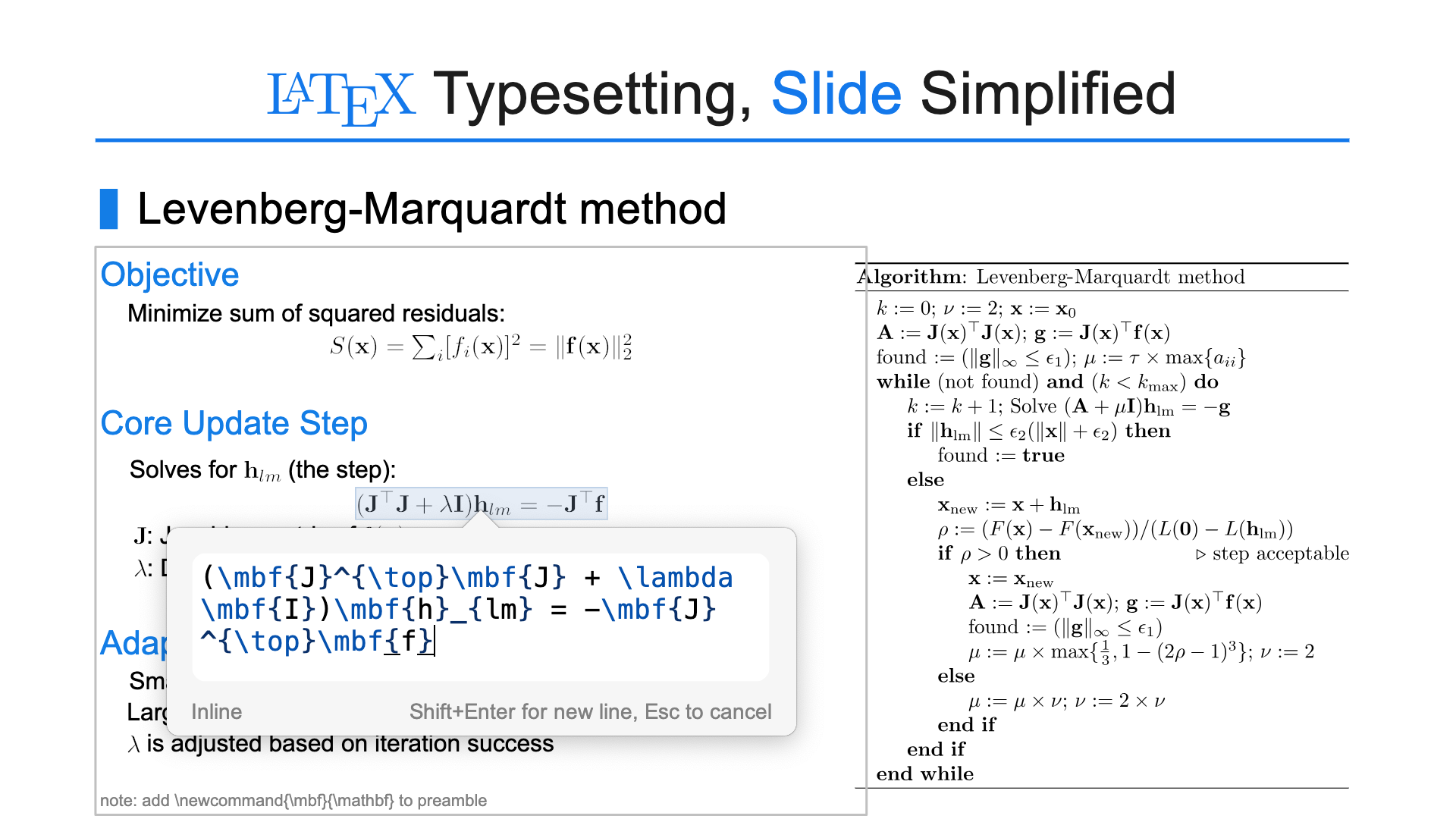
Edit formula source in the pop-up editor while keeping the surrounding text layout stable
Syntax Highlighting and Bracket Matching
The formula editor and preamble now support syntax highlighting and bracket matching for LaTeX and Typst. Syntax highlighting uses color to distinguish elements in the source, making code easier to read and edit. Bracket matching helps identify paired brackets and their nesting, reducing errors caused by missing or mismatched brackets.
The syntax support for these languages is based on the following projects:
- LaTeX — Badness : Provides LaTeX source parsing, which forms the basis for syntax highlighting and bracket matching
- Typst — typst-syntax : The Typst project’s syntax parser, providing syntax analysis and highlighting for Typst source

Syntax highlighting and bracket matching when editing LaTeX and Typst formulas or preambles
No Formula Limit for Standalone Formulas
In-text formulas can be entered directly in a text box in either inline or display mode and typeset alongside the text. Complex formulas, tables, and TikZ graphics can still be created as standalone formulas.
This update changes the free plan’s formula limits: standalone formulas are no longer limited by a formula quota. The per-document limit of 30 formulas applies only to in-text formulas, including both inline and display formulas. Once the limit is reached, newly inserted in-text formulas will not render, while standalone formulas can still be added and rendered.
This change reflects TexSlide’s commitment to making clear, accurate mathematical and technical presentations accessible to more researchers, engineers, and educators.
How to Use
You can insert and edit in-text formulas in the following ways:
- Choose Insert → Formula → Inline to insert an inline formula (shortcut:
⌘/Ctrl + Shift + I) - Choose Insert → Formula → Display to insert a display formula (shortcut:
⌘/Ctrl + Shift + D) - You can also type formulas directly in a text box using
$...$or\(...\)for inline formulas, and$$...$$or\[...\]for display formulas. Typing formulas this way does not automatically open the pop-up formula editor. - Click an existing in-text formula, or move the cursor onto it with the left or right arrow key, to edit its source in the pop-up formula editor.
- Continue to use standalone formulas for complex formulas, tables, or TikZ graphics.
Inserting and editing in-text formulas
Bibliography Management and In-Text Citations
In Word and other word processors, users can manage bibliography entries and insert in-text citations using built-in features or Zotero plugins. TexSlide now includes these capabilities, with no third-party plugin required. After several rounds of design iteration, we have created a unified workflow for in-text citations, bibliography footers, and reference lists at the end of a presentation.
Currently, only the ODP format can fully save and restore bibliography management data. When a presentation is saved as PPTX, some generated visible content may remain, but the BibTeX library, editable in-text citations, and bibliography footer settings cannot be fully restored. After reopening the file, you cannot reliably continue managing or refreshing references. Save as ODP if you need to keep editing and managing references. Support for saving and restoring bibliography management data in PPTX files is planned for the next release.
Features
- BibTeX Entry Management: Import, export, add, edit, and delete entries. Bibliography entries are stored in the presentation file.
- In-Text Citation Insertion and Editing: Insert one or more citations in a text box; edit an existing citation from its right-click menu.
- Citation Styles: Choose from common styles such as ACS, APA, GB/T 7714-2025, IEEE, MLA, and Nature, and adjust the locale and citation format (regular or superscript).
- Bibliography Footers: By default, display bibliography entries for all works cited on the current slide in the slide footer.
- Reference Slides: Generate a complete reference list at the end of the presentation. If the list does not fit on one slide, TexSlide automatically creates continuation slides.
How to Use
Manage Entries and Insert In-Text Citations
- Open the bibliography manager from Insert → Bibliography → Bibliography or click Bibliography on the toolbar (shortcut:
⌘/Ctrl + Shift + C). - Use Import to import a
.bibfile. Multiple imports are supported, and new entries are merged with existing ones. Use Export to export the bibliography entries in the current presentation as a.bibfile. You can also add, edit, or delete entries. - Before inserting a citation, place the cursor in a slide’s text box and open the manager. Select one or more entries and click Insert Citation. You can adjust the Citation Style, Locale, and Citation Format at the bottom of the dialog; citation format can be regular or superscript.
- Right-click an existing in-text citation and choose Edit Citation to modify it.
Open the bibliography manager and edit an inserted in-text citation from its right-click menu
Generate Bibliography Footers and Reference Slides
- Choose Insert → Bibliography → Footer Bibliography to enable or disable bibliography footers for the entire presentation.
- Choose View → Master Slide to adjust the bibliography footer style. Changes apply throughout the presentation.
- When bibliography footers are enabled globally, right-click a slide thumbnail and choose Hide Bibliography Footer or Show Bibliography Footer to control the footer on that slide only.
- Choose Insert → Bibliography → Reference Slide to generate a complete reference list at the end of the presentation. If the list does not fit on one slide, TexSlide automatically creates continuation slides. You can adjust the list style on the first reference slide, and subsequent reference slides will use the same style. Entries use hanging indents: for entries with a numbered prefix such as
[1]or1., wrapped lines align with the text after the prefix; for entries that begin with an author name, continuation lines are indented by the width of eight spaces in the current font.
Bibliography footers and reference slides
Refresh Bibliography
Refreshing updates in-text citations, bibliography footers, and reference slides together. Most actions, including inserting or editing citations, update them automatically. A few actions still require a manual refresh, such as changing the reference slide style. Choose Insert → Bibliography → Refresh Bibliography, or click Refresh Bibliography on the toolbar.
Windowed Slideshow
This update adds windowed slideshow support. Click the windowed slideshow button on the toolbar to present in a separate window, so you can view other desktop content at the same time.
Start a windowed slideshow from the toolbar and view the slideshow window
Other Improvements and Fixes
This update also includes the following improvements and fixes:
Slide Thumbnail Display on macOS
Fixed blurry slide thumbnails in the editing interface and Presenter Mode on macOS.
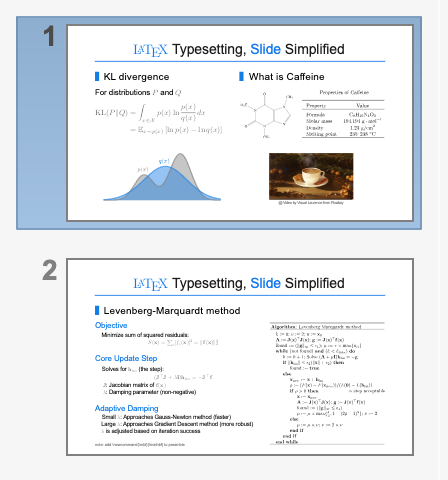
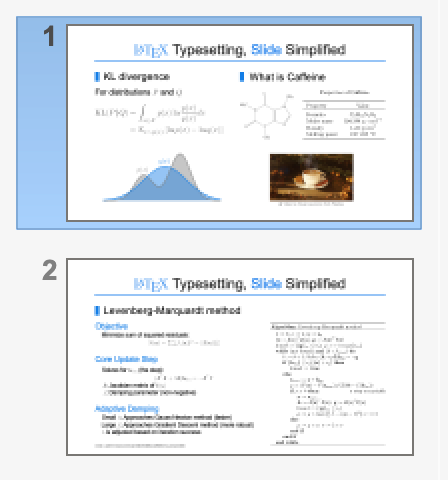
Slide thumbnail comparison on macOS
Other
- Document Opening: Improved opening performance for PPTX and ODP documents. Opening time for large documents has been reduced by more than 50%.
- Slide Thumbnails: Improved thumbnail loading speed and made reordering slides by dragging smoother.
- Stability and Compatibility: Fixed multiple stability issues and document compatibility problems.